
- cross-posted to:
- selfhosted@lemmy.world
- cross-posted to:
- selfhosted@lemmy.world

Me again :P
Honey, I Shrunk The Vids is a streamlined video conversion tool built on FFMPEG, with smarts built in for standardising all files put through it to a standard target bitrate into either .mp4 or .mkv containers, in either h.264 or HEVC format. Comes in GUI for desktop and CLI for headless operation. The idea is that you can point it at a folder full of folders full of videos and hit “Start”, and trust that when it’s through you’ll have videos compatible with devices back to ~2014, smaller (or at least no bigger) than they were before, and with accurate MKV tags where appropriate.
The application has gone through some more major revisions since my last post, and I thought people would like to know! The first thing you’ll notice is the visual refresh:
Screenshots
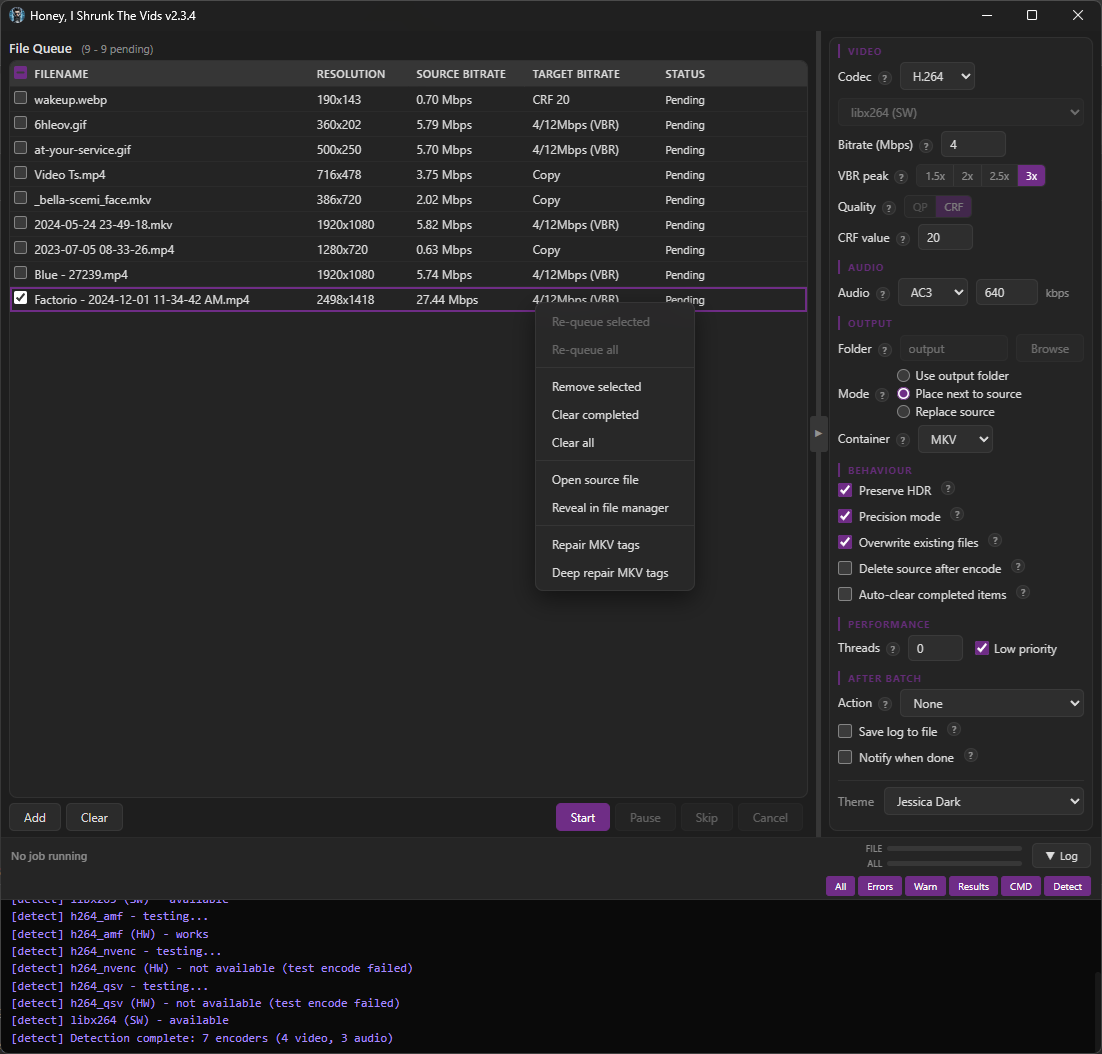
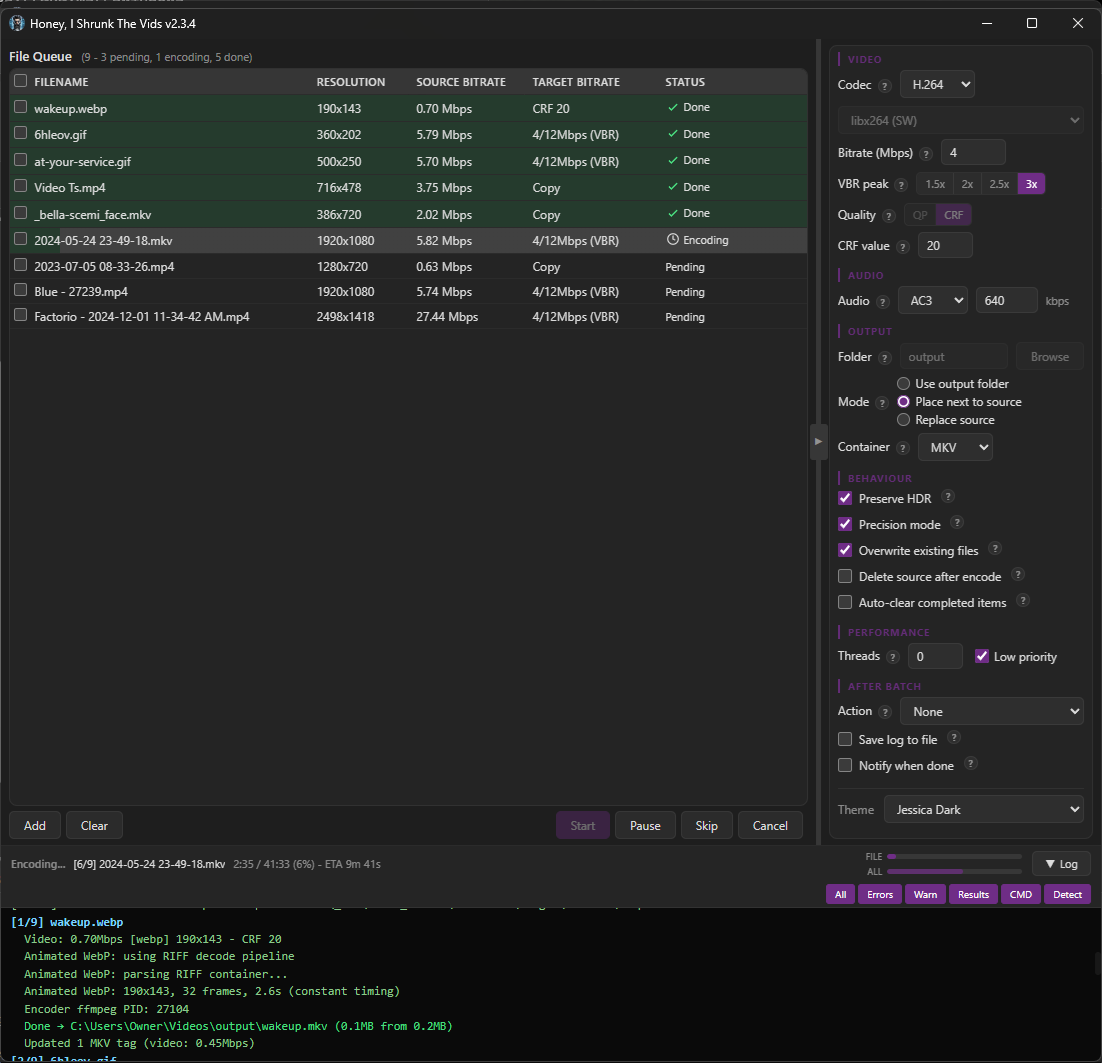
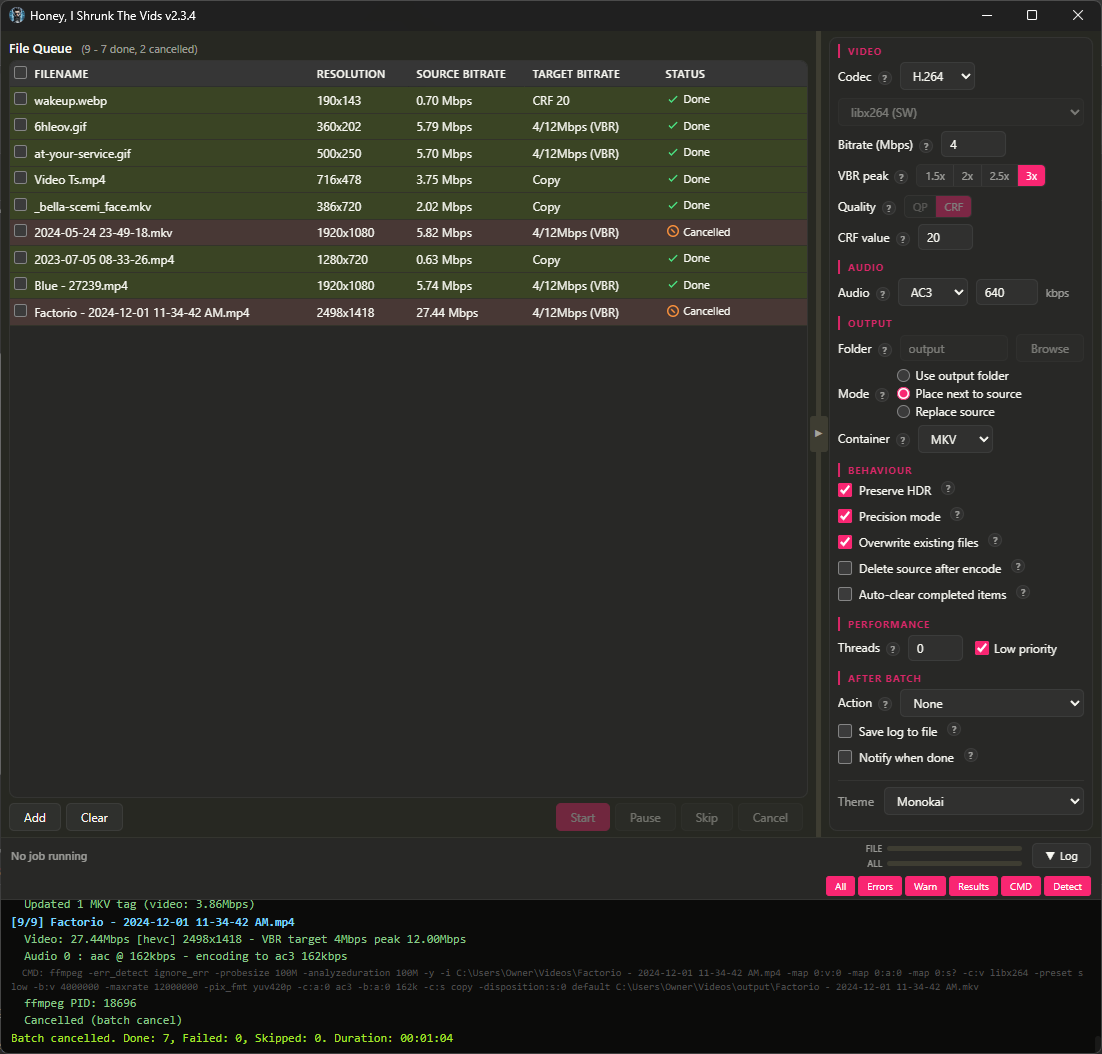
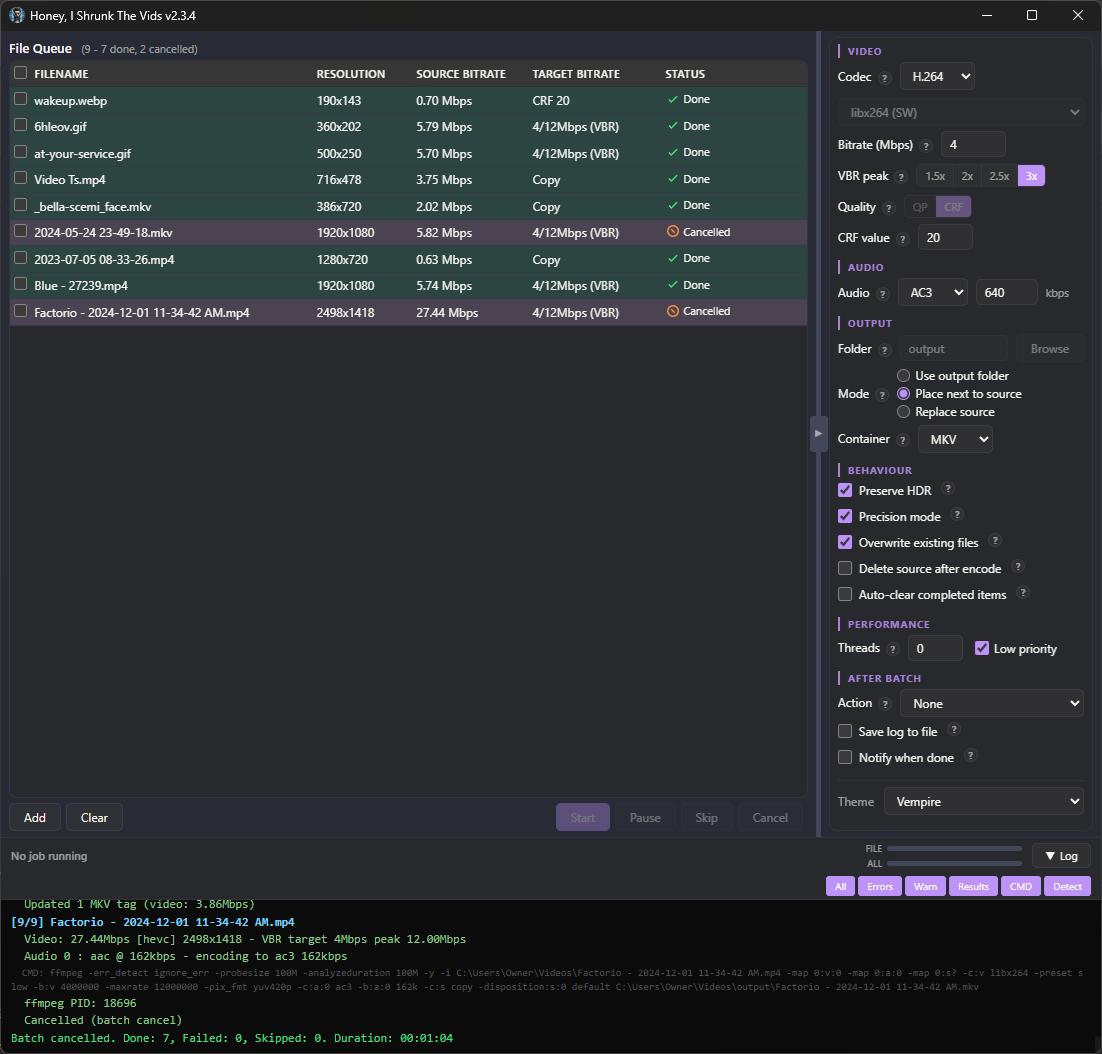
There are no more menu tabs; all options are exposed in a single side panel. Also, I added exotic filetypes for inputs: mts, mpg, mpeg, vob, flv, 3gp, 3g2, ogv, rmvb, rm, asf, f4v, y4m, apng, webp. That’s right, you can convert basically anything FFMPEG supports to convert to MKV or MP4!
I’m particularly proud of the webp support. FFMPEG can’t decode animated WebP natively (or at least, the most popular binaries can’t; maybe someone has a fork that’s fixed it), so HISTV:
- Parses the RIFF container itself,
- Decodes each frame through ffmpeg’s static WebP decoder,
- Composites them with correct alpha blending and disposal, and
- Pipes the result to the encoder.
Temp files are completely avoided for storage/IO reasons; variable frame timing is preserved, so smooth per-frame progress is retained from source.
The one filetype I left out was .yuv, because that’s raw data, no container or headers, and the user would have to enter the correct dimensions for each video (which defeats the core purpose of Honey, I Shrunk The Vids, so it’s out of scope for this project).
The theme engine has been simplified, with only 6 keys down from 16, and everything named more intuitively so it’s easier to tell what changes what. As well, a Linux user reported their FFMPEG wasn’t discovered properly, so ffmpeg discovery now uses login-shell PATH resolution (previously macOS only), fixing detection when ffmpeg is installed to locations like ~/.local/bin.
Bunch of bugs got squished (for example the encoder would switch when toggling the new “Precision Mode” checkbox), and several more efficiency passes were made with more hand-edits than ever. This is the cleanest, leanest build yet, and the most featureful.
Finally, I added “-full” versions for each platform. These come bundled with FFMPEG, if you want just a single download.
Also, I’ve flirted with the idea of signing the Windows executable so Windows Defender stops complaining about it, but I don’t yet see a reason to give Microsoft money for that. You can just click “More Info”, and then “Run Anyway”.
I’m running out of ideas for future updates, but if anyone has requests just drop a comment or open up an issue! And, as always, I’m here for questions. I hope you find it useful!
You must log in or # to comment.
Hello!
If you want a bigger challenge, try solving the Dolby Vision vs HDR10+ fight between Samsung and LG/Sony.
I haven’t seen anyone with a fully compatible solution yet. Im in the process of building some Tdarr plug-ins based off of this repo
https://github.com/nichols89ben/Tdarr_DoVi_ProcessingThe goal is to take source content that contains either DoVi profile 4,5,7,8 or HDR10+ and output a mp4 or mkv that contains the base HDR10 layer along with BOTH HDR10+ and DoVi 8 additional streams, and then test on various players to see if they can utilize those streams correctly for the ones they support.
This topic goes quite deep so be prepared to get sucked in. Your existing tickbox for “preserve HDR” probably doesn’t work at all for DoVi profile 5.
- Love the project name.
- This looks close to what I’ve imagined coalescing my hand conjured ffmpeg scripts into.
- I’d like to feed this into a pipeline that includes Subler or equivalent.
So, I wanted to try the app and it is giving me the EGL rendering whatever issue :/ Could you please make another post once you’ve fixed this issue.
Ah, what version did you try? This is due to issues with the renderer, but I just got this fixed by disabling GPU drawing for the form last night. Give 2.5.9 a go 😊
I was in the comments of the GitHub issue, kalzEOS. I’ll be trying it out when I got time. Appreciate it.
So… How’s it working? 😅 (Just realised it’s been a while since I’ve touched HISTV and this came to mind, I’ve been working on my business and day job)
I haven’t really had the time to convert many. Just one and It is just sitting there at 0% for a long while then it starts converting and the ETA is 22 hours for a 8GB movie. A couple notable things also: 1. the ui is kind of too small for a 4k screen and there is no way to adjust it. 2. this could very well be a user error, but I can’t, for the life of me, find where to set the output file type. I want to convert an mkv to mp4 or something but I can’t find that at all. 3. at the top of the right panel, there is this line that says “Extracting MP4Box…” that never goes away. 4. when I try to convert a movie (mine are all 4k HDR), a window pops up that tells me that DV tools not found, then offers me to download it, but nothing really happen when I click to download it. Could that be why that “Extracting MP4Box…” is sitting there at the top? This is on Cachy OS linux btw.
Ah, I’ll put in a zoom feature, that’s a good idea!
Remind me of the hardware you’re running on? 22 hours for a 4k HDR movie sounds about in the ballpark for converting on CPU. I’ve just switched to Linux (Mint, not Cachy) and I think there’s an issue with detecting GPU on Linux, so this’d track (or you have Precision Mode enabled) - if you see “libx265” or “libx264” in the top right, you’re on CPU. I’m looking into this one.
Can I ask which version you downloaded? I’ll look into the DVTools/MP4box issue.
Also, yes, I removed the codec and container selection boxes - it’s HEVC/MKV by default unless you go for “Compatibility Mode” in which case you get H.264/MP4. “Preserve AV1” of course preserves AV1 which is incompatible with MP4 so they’re mutually exclusive.
Remind me of the hardware you’re running on?
I have a Ryzen 7 5800xt for the CPU, and an RX 9070xt for the GPU
or you have Precision Mode enabled
never checked that box
if you see “libx265” or “libx264” in the top right
Yes, that is what I have now libx265(SW) - HEVC
Can I ask which version you downloaded?
histv-linux-full.AppImage
One additional thing that might or might not be the app’s fault, but I use an app called App Manager to install and integrate my appimages into my system, but it is having an issue with the .png image of the app. Just wanted to let you know about that. Your doesn’t have an icon when it is downloaded, only when it is launched. so it just looks like a file with a generic file icon in my downloads folder.

One thing I’d like to see from an app like this is “force the video into an arbitrary file size limit” with a list of priorities to do so defined by the user. Say I’ve got a video I want to send over Discord (10mb limit) but I’m not intending for the vid to be fullscreened by the recipient so scaling it down to like 480x480 would be fine.
You know what? I think I can figure out a way to estimate final file size and display it to the user. It’ll only work if “Precision Mode” is off though - that uses “CRF” or “Constant Rate Factor” which basically tells the encoder “be efficient, but make the file as big as it needs to be to look good”. As a result there’s no way to tell how big the file will end up being - the encoder makes the decision on the fly.
With “Precision Mode” off, HISTV has two gears:
- If your file is already small enough (at or below the target bitrate), it uses “CQP” or “Constant Quantisation Parameter” (the QP I/P numbers), which tells the encoder “Use this quality level for every frame, I don’t care how big the file ends up”. It’s fast and consistent - every frame gets the same treatment.
- If your file is too big, it switches to VBR (Variable Bit Rate), which tells the encoder “Stay around this target bitrate, spike up to the peak ceiling on complex scenes, but don’t go over”. It’s how the app actually shrinks files. You can estimate the output size with target mbps * seconds / 8 - so a 60-second clip at 4Mbps lands around 30MB. <- This is the maths I’m thinking about doing to display the estimate to the user.